

Motion control tools split the job in two: a photo says what the character looks like, and a video says how it moves. Most attention goes to the photo, but the reference clip decides the movement, and a clip that is hard to read gives the model less to work with. If you are going to film the dance yourself (or ask a friend), a little planning makes a big difference.
This guide covers how to shoot a reference clip for Kling 3.0 Motion Control on AngryDance, using the requirements on its page.
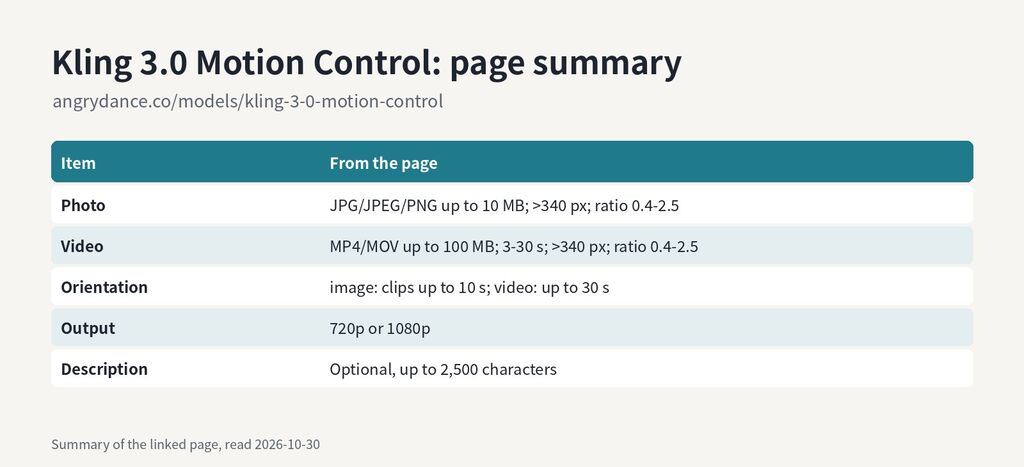 Summary of the linked page: angrydance.co/models/kling-3-0-motion-control (read 2026-10-30)
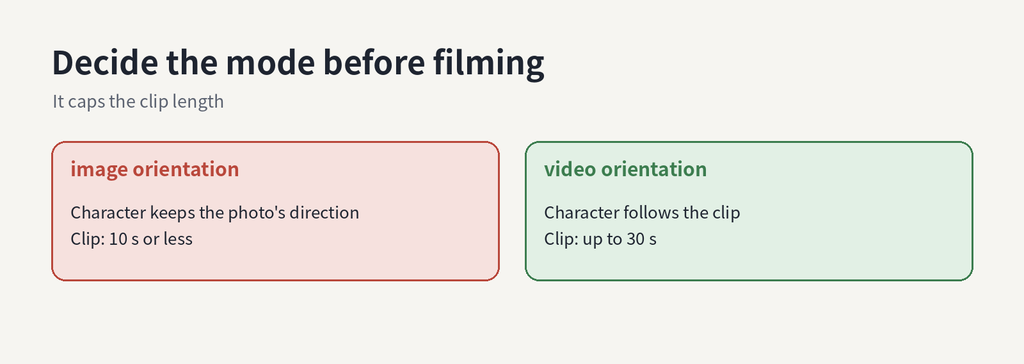 The orientation setting caps the clip length
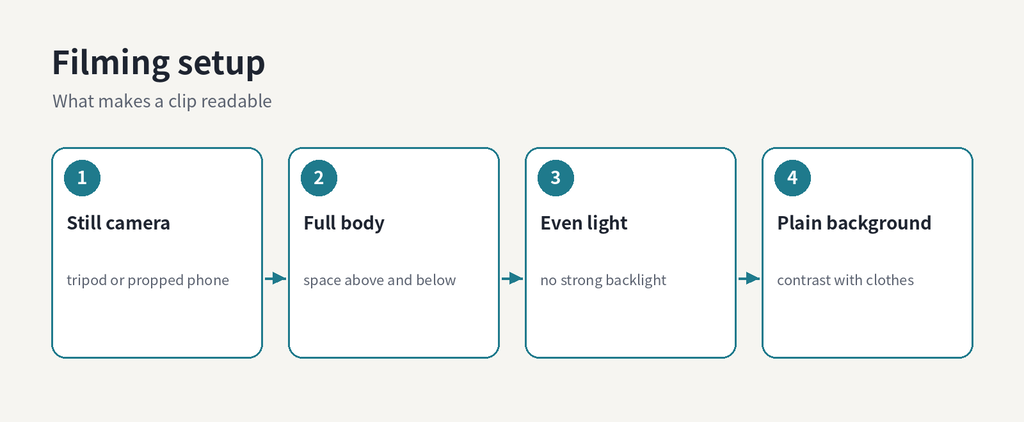 Still camera, full body, even light, plain background
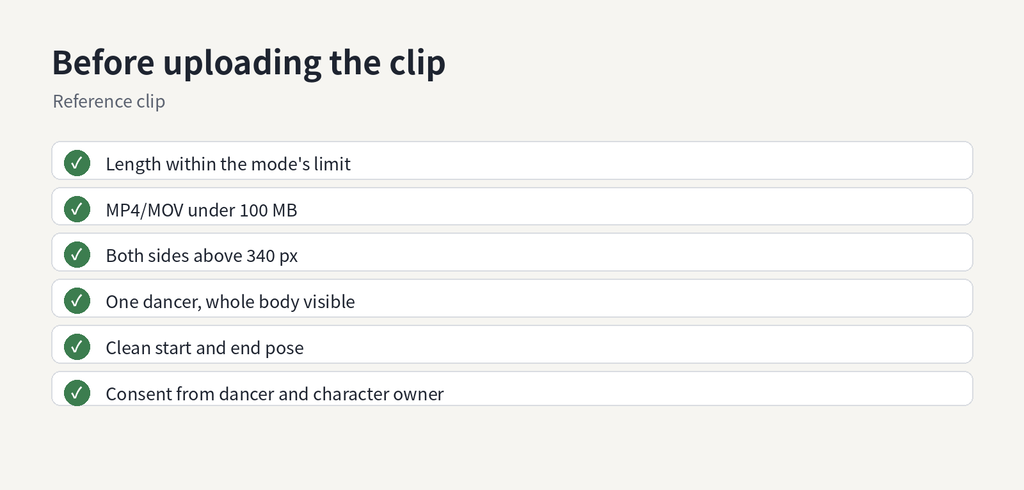 Before you upload the clip
This guide covers how to shoot a reference clip for Kling 3.0 Motion Control on AngryDance, using the requirements on its page.
The requirements
From the page's input and FAQ sections:- Photo: one JPG, JPEG or PNG, up to 10 MB; both dimensions over 340 px; width-to-height ratio between 0.4 and 2.5; the character and the body areas relevant to the dance clearly visible.
- Video: one MP4 or MOV, up to 100 MB, 3–30 seconds; both dimensions over 340 px; ratio between 0.4 and 2.5.
- Orientation: image takes the character's orientation from the photo and supports reference clips up to 10 seconds; video takes it from the clip and supports up to 30 seconds. The video provides the movement in both modes.
- Output: 720p or 1080p; optional description up to 2,500 characters; a credit quote is shown before generating.
Before you film: decide the orientation mode
The mode changes how long your clip can be.- If you want the character to keep the pose and direction from the photo, use image orientation and plan a clip of 10 seconds or less.
- If the dance turns or travels and you want the character to follow, use video orientation; you then have up to 30 seconds.
Framing
- Whole body in frame, with a little space above the head and below the feet. Movements that leave the frame are movements the model cannot see.
- Camera still. Use a tripod or lean the phone against something. Camera movement and dancer movement mixed together are harder to separate.
- Same shape as the photo. If your character photo is a vertical full-body shot, film vertically too. Similar framing between photo and clip is easier to match.
Light and background
- Even light, ideally from the front or slightly to the side. Strong backlight turns the dancer into a silhouette and hides arms and hands.
- Plain background that contrasts with clothing. A dark outfit against a dark wall makes limbs hard to read.
- Fitted clothing helps: very loose or flowing clothes can hide where elbows and knees actually are.
The dance itself
- Clear, readable moves work better than very fast, tiny ones. If a move is hard to see in the clip, it will be hard to transfer.
- One dancer. The photo is of one character; give the model one performer to follow.
- Start and end cleanly. Begin in a stable pose and end in one, so the clip does not start or finish mid-motion.
After filming
- Trim the start and end so the clip is within your chosen limit (10 s for image orientation, 30 s for video).
- Check the file is MP4 or MOV and under 100 MB. Phone footage at high bitrates can get large; export at a lower resolution if needed, as long as both sides stay above 340 px.
- Watch it once at small size. If you cannot follow the arms at thumbnail size, re-film with better light or contrast.
The photo and consent
Use a photo of a character you have the right to use: yourself, an original illustration, or someone who has agreed to it. The same goes for the dancer in your reference clip. A dance video of a real person carries their likeness, so ask before you post the result anywhere.Generate and compare
Choose 720p for a quick look or 1080p for the final, add a short description if you want to set the scene or expression, and check the credit quote. The page suggests keeping the photo and clip fixed and changing one supported setting at a time, such as orientation or output quality, then comparing the completed videos. That is the easiest way to tell what each setting actually changes.